Smart guides for your app store screenshots
Updated
A set of app store screenshots looks professional when every frame is aligned the same way. Smart guides snap each device to its frame and show live pixel margins as you drag, and Auto layout copies one perfect frame to all the others in a single click. Here is how to use both to ship a consistent row of screenshots fast.
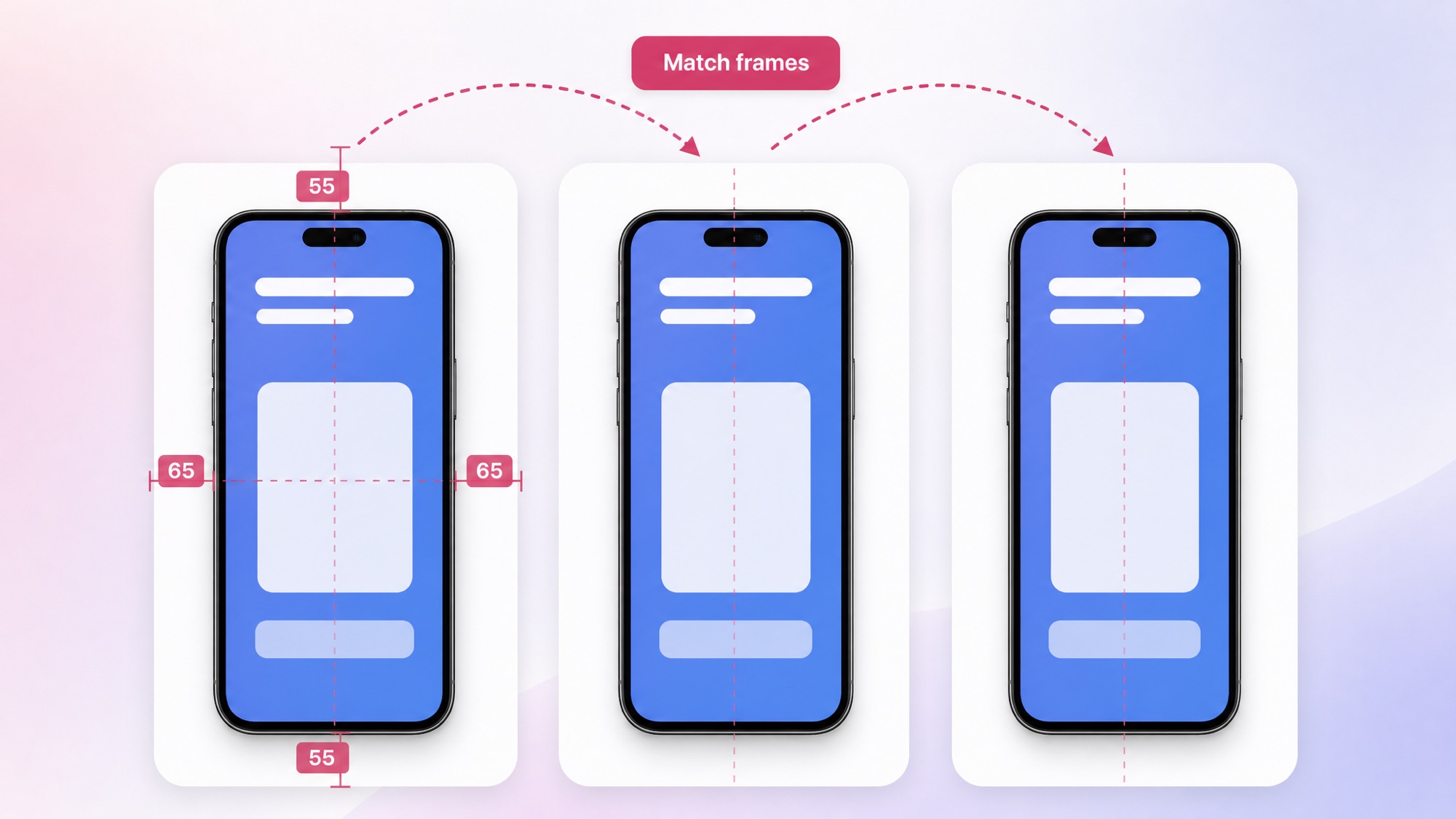
#Snap to the frame
Smart guides are how you get every app store screenshot aligned the same way. They combine magnetic snapping with live pixel labels, so you can place a device by eye and still land it exactly on the frame.
Read the margins as you drag
While you drag any element, the editor measures the four distances from its edges to its frame edges and draws them with pixel labels: left, right, top, and bottom. When left equals right and top equals bottom, the element is centered. The device also snaps to the frame center, so you feel it lock into place. Matching those numbers from frame to frame is what makes the whole row look consistent.
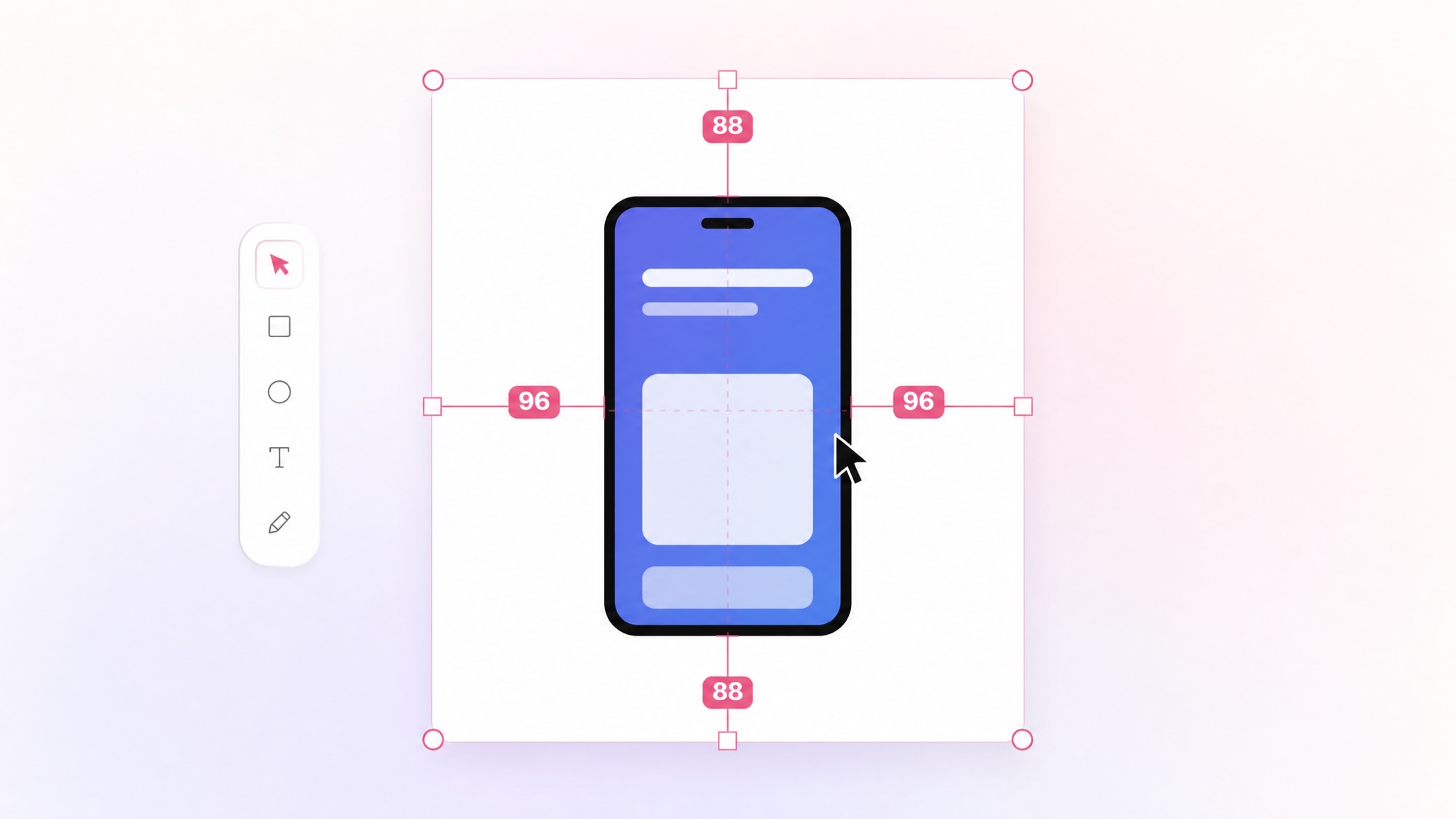
Turn Smart guides on or off
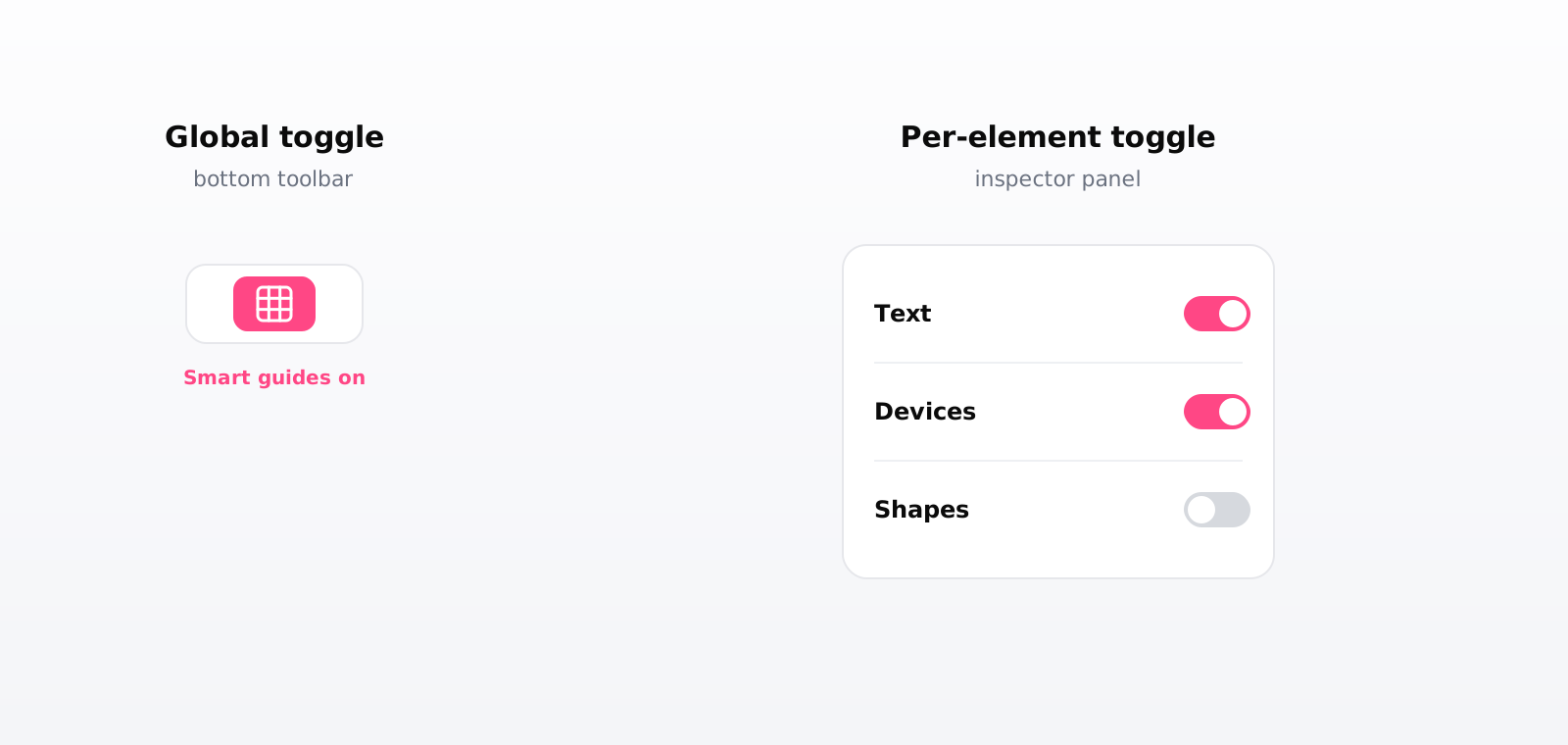
There are two switches. The pink grid button in the bottom toolbar is the master switch for snapping everywhere. Each element also has its own Smart guides toggle in the inspector, and snapping is active only when both are on. The per-element defaults are on for text and devices, and off for shapes, logos, icons, and standalone images, so the things you usually center snap by default and the things you place freely do not jump.
#Lay out every frame at once
Once one frame is perfect, the Auto layout section in the device inspector copies it across the rest. There are four one-click actions, each working on every device across all frames.
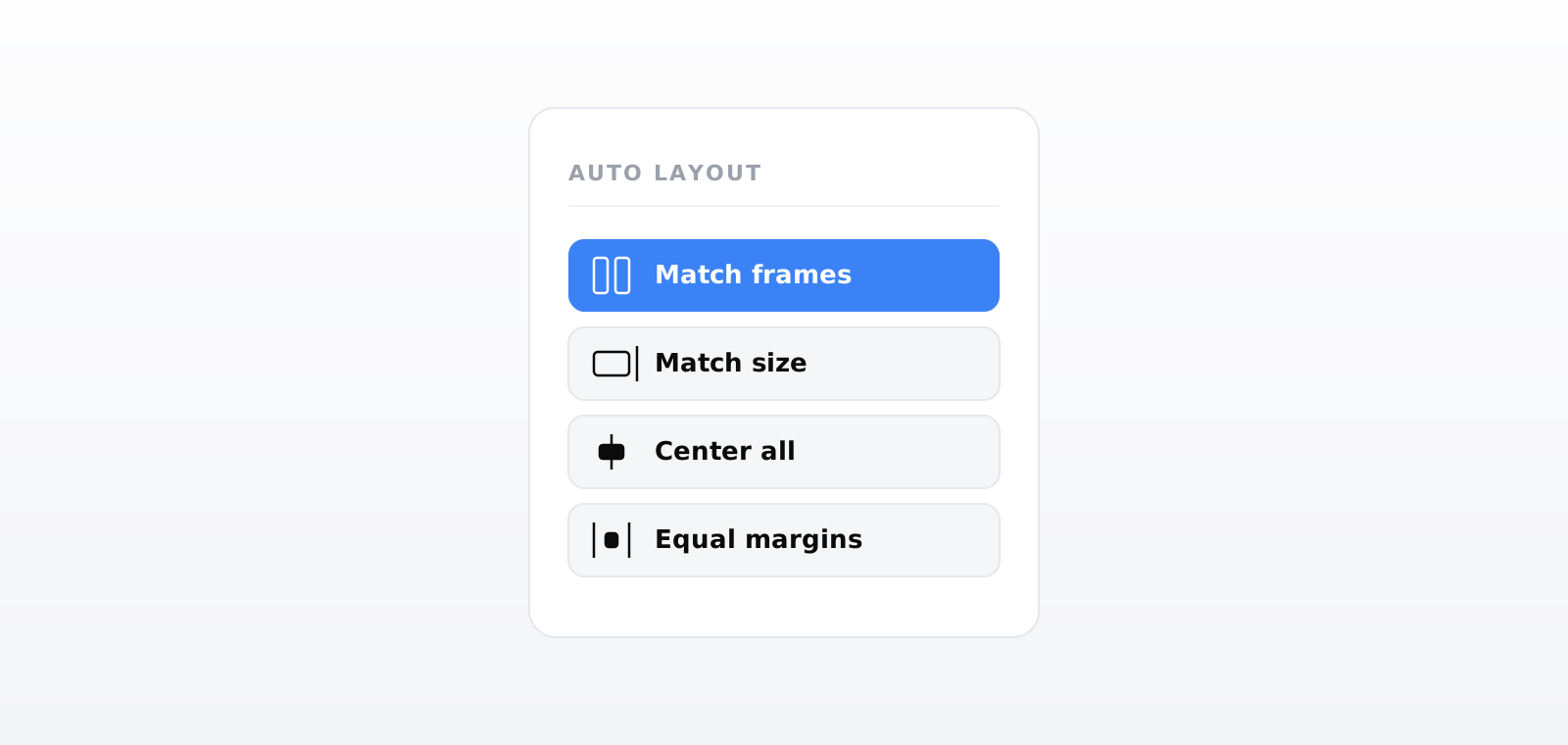
- Match frames. It applies the selected device relative position to one device in every other frame, so a single perfect frame becomes the layout for all of them.
- Match size. Sets every other device of the same model to the selected device width and height, keeping each in place. Use it when your devices drifted to different sizes.
- Center all. Centers each device in its own frame, horizontally and vertically.
- Equal margins. Centers each device horizontally in its frame and leaves the vertical position untouched.
Every action is recorded as a single grouped history entry, so one undo reverts the whole change across every device at once. Apply it, check the result, and step back in one click if it is not what you wanted.
#Frequently asked questions
How do I line up app store screenshots so they look consistent?
Get one frame exactly right, then copy it to the rest. Drag the device in the first frame until the live margin labels read equal on left and right and on top and bottom, which means it is centered. Then select the device and click Match frames in the Auto layout section to place a device in every other frame the same way. The whole row ends up aligned identically.
What are Smart guides and how do I turn them on or off?
Smart guides are magnetic snapping plus live pixel labels. While you drag an element, the editor shows the four distances from its edges to its frame edges and snaps it to the frame center. There are two switches: a global toggle in the bottom toolbar (the pink grid button) that turns snapping on or off everywhere, and a per-element Smart guides toggle in the inspector. Snapping is active only when both are on.
How do I copy one frame layout to all the other frames?
Lay out one frame, select its device, and open the Auto layout section in the device inspector. Click Match frames to apply that device relative position to one device in every other frame. If your devices differ in size, click Match size too, which sets every device of the same model to the selected device width and height.
Why does my icon or logo not snap like the device does?
Each element type has its own Smart guides toggle, and the defaults differ. Text and devices snap by default, while shapes, logos, icons, and standalone images have snapping off by default so they do not jump while you place them freely. Open that element inspector and turn its Smart guides switch on to make it snap to the frame like the device.
Can I undo an Auto layout change if it moves everything?
Yes. Every Auto layout action is recorded as a single grouped history entry, so one undo reverts the whole action across every device at once. Apply Match frames, check the result, and if it is not what you wanted, undo once to put every device back where it was.
#Official sources
The official references this guide is based on. Check them for the latest requirements before a submission.

Start designing
Get 5 free credits to generate app store screenshots. Upload your app shots and turn them into polished, store-ready designs in minutes.
Add at least one screenshot of your mobile app (1 credit each)